
Connect Flipsnack to HubSpot
Turn flipbooks into measurable marketing assets with lead capture and engagement tracking in HubSpot:
- Collect leads without leaving the flipbook
- Automatically send clean contact data
- Track engagement and improve campaigns over time

Trusted by the world’s most innovative businesses





Turn flipbook readers into leads
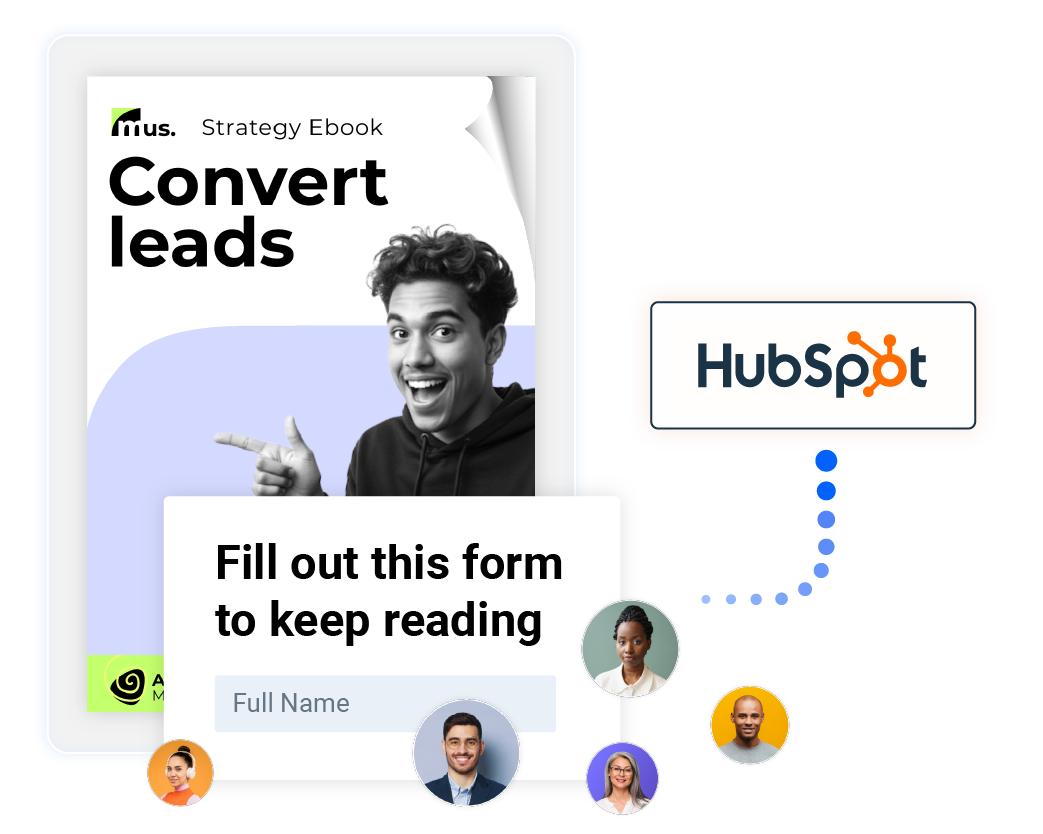
Add a form to your flipbook and send every submission to HubSpot as a new contact. No manual exports or extra tools required.
Centralise leads for smarter decisions
When flipbook forms are connected to HubSpot, every submission is stored as a clean contact record you can use right away in HubSpot.
What you can do with it:
- Build instant lead lists from flipbooks
- Route leads to the right owner by source
- Cut manual work when moving leads
How to enable the HubSpot form integration for lead gen
1. Enable a form in your flipbook
Choose where and how to collect leads inside your flipbook.
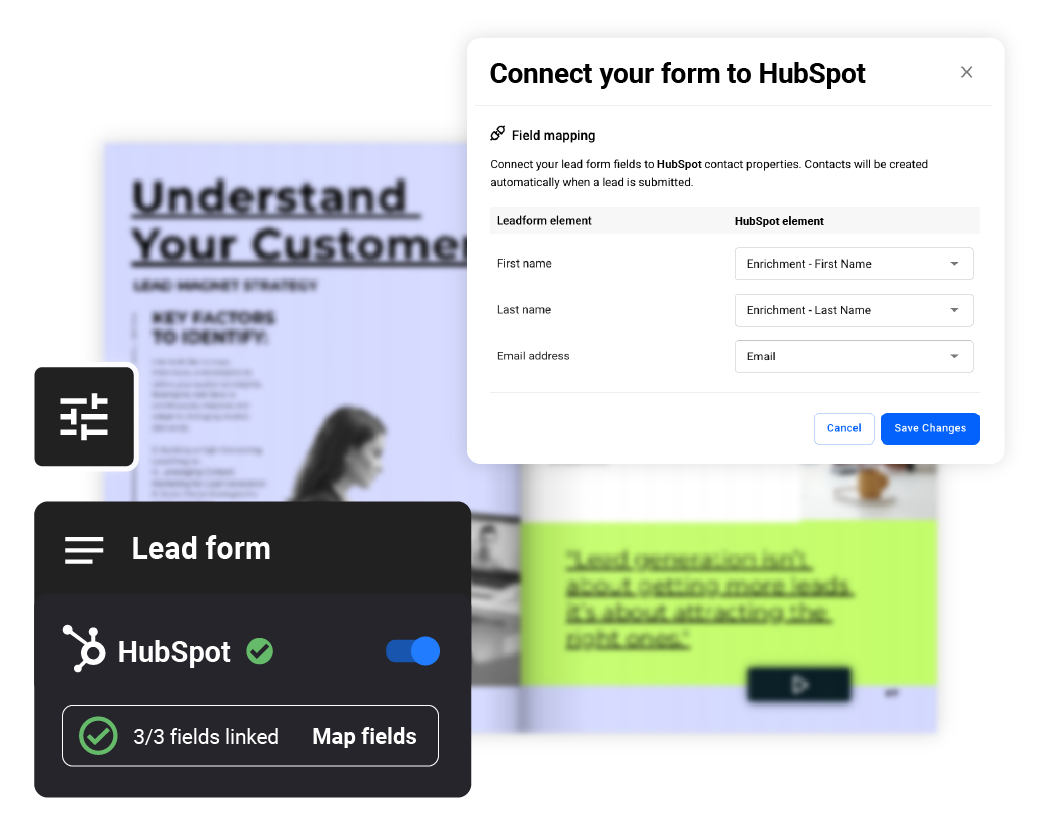
2. Connect HubSpot and map your fields
Decide what data you collect and where it should live in HubSpot.
3. Publish and test your setup
Go live and confirm submissions appear correctly in your CRM.

Lead generation
Turn flipbooks into lead capture assets you can use across campaigns, events, and gated content.

Clean contact data
Send structured information to HubSpot so contacts are ready for lists, workflows, and follow-up.

Smooth reader flow
Keep readers focused on the content while they share their details, without extra clicks or pages.
There’s more to the HubSpot integration
Once form syncing is in place, you can extend the integration with Google Tag Manager.
This lets you track engagement, understand performance, and add new interactions, without changing how your flipbooks work.
See how readers engage with your content
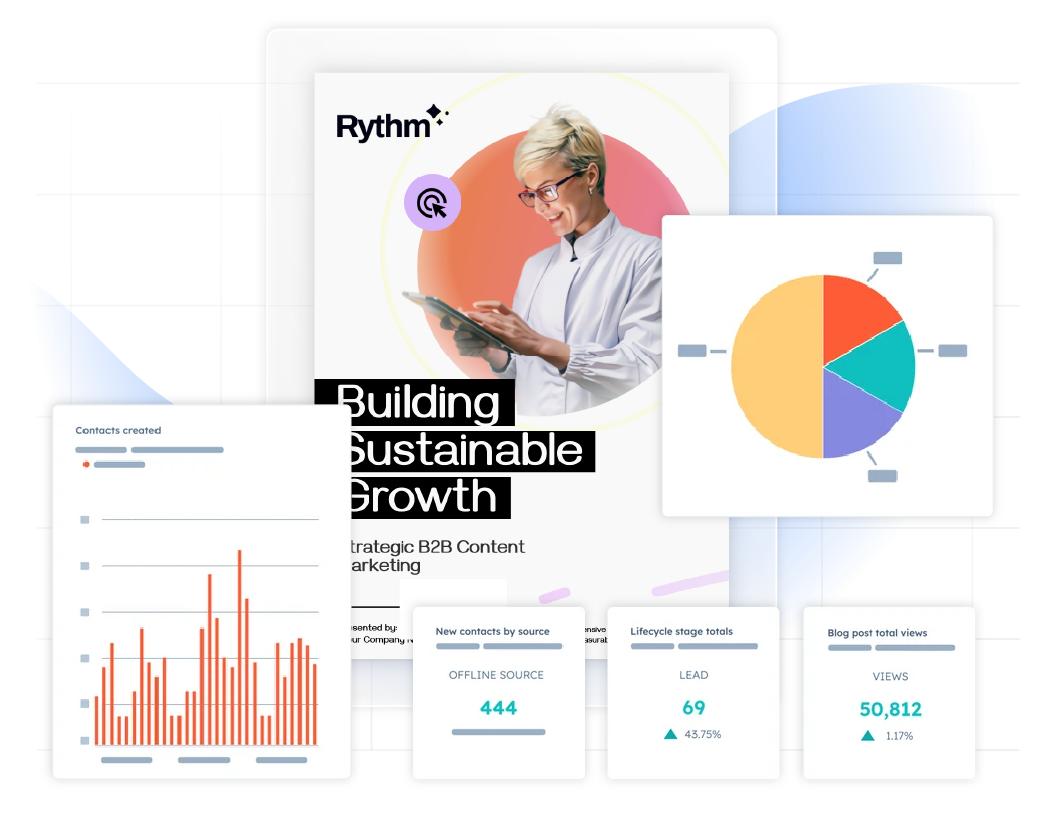
With the HubSpot tracking code, your flipbooks become part of your marketing setup and can be measured like your landing pages, emails, and campaigns.
What you can do with it:
- Track flipbook views and activity
- See top-performing flipbooks
- Add HubSpot chat widgets
- Use attribution data for campaigns
How to set up Google Tag Manager for HubSpot tracking
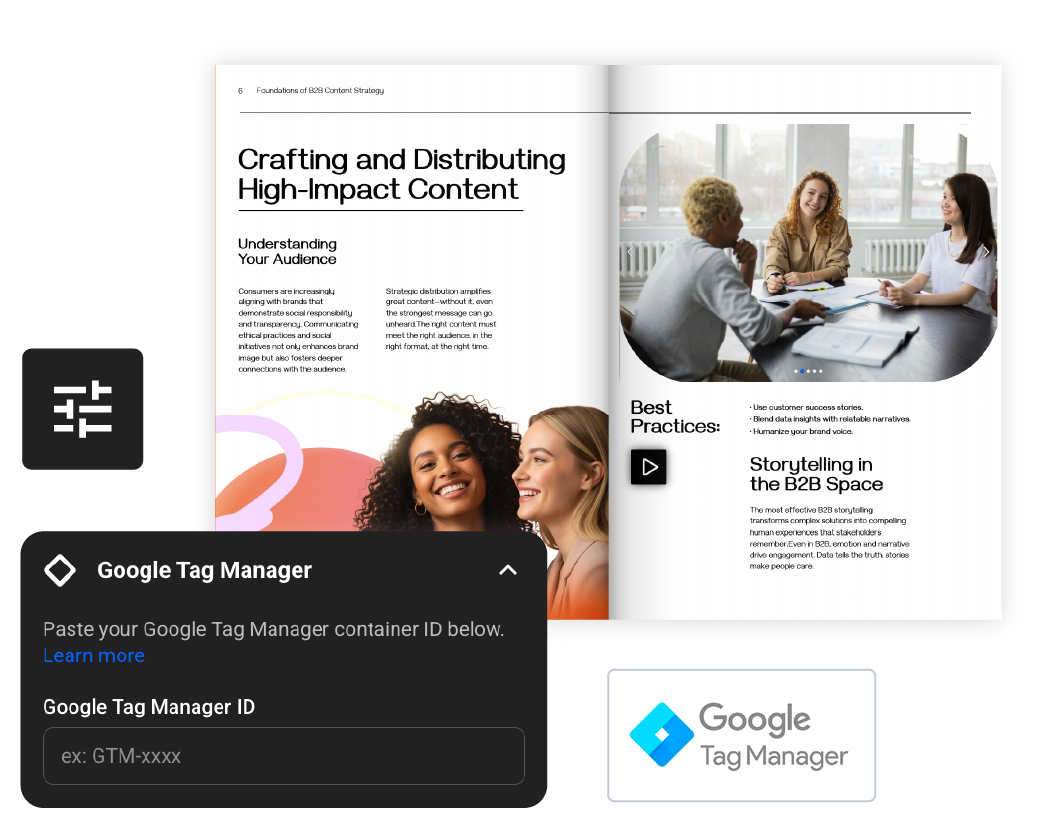
1. Add your GTM container ID in Flipsnack
Enter your Google Tag Manager ID in the Customize area.
2. Add the HubSpot tracking code in GTM
Create a Custom HTML tag, paste the HubSpot tracking code, and set it to load on all pages.
3. Publish your GTM container
Publish your container to enable tracking across all flipbooks.
Use Google Tag Manager and HubSpot to unlock:

Centralised activity tracking
Track flipbook activity in HubSpot alongside your other marketing assets.

Per-contact activity logs
See flipbook views and clicks inside each HubSpot contact record.

Advanced attribution
Add flipbooks to HubSpot campaigns and measure their impact on results.

Embedded CTAs
Guide readers with calls-to-action placed directly inside flipbooks.

Chat widget support
Let readers contact your team through the HubSpot chat widget.

Cookie consent display
Show HubSpot’s cookie banner inside flipbooks for compliant tracking.
Direct tracking with the Flipsnack Hubspot App
You can now track flipbook events in HubSpot without Google Tag Manager, with built-in tracking for views, clicks, and engagement.
Learn more
Connect Flipsnack to HubSpot today
Start capturing leads and tracking engagement from your flipbooks in minutes.